
Video storage devices
Log in to the video storage device configuration interface (Windows)
How Can We Help?
Log in to the video storage device configuration interface (Windows)
To configure your video storage device, you can log in to its configuration interface in a simple way. This guide will help you enter the interface via a Windows computer and CMS Lite.
What you need:
- A computer connected to the same router as your video storage device
- The video storage device should be on
- CMS Lite installed on your computer
- Here is a guide on how to install CMS Lite
Here's how you do it
- Open CMS Lite
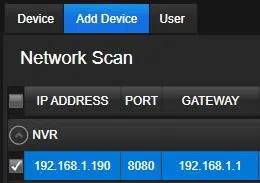
- Locate your video storage device via ‘Device’ if you have already added it, or ‘Add device’ if you haven’t, and note down the IP address and port, for example:
- IP address: 192.168.1.190
- Port: 8080
- Open Internet Explorer
- Enter your IP address and port in the address bar in the following format
- http://192.168.1.190:8080

- Log in with your login details. If you haven't changed them, you can find them on the bottom of your device
- Ready to go. You are now in the configuration interface
